




















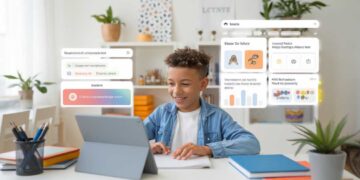





Transform your lesson planning with AI-Powered Lesson Planning using ChatGPT. Learn step-by-step strategies, time-saving templates, and proven techniques from experienced teachers. Includes real classroom examples and troubleshooting tips.

Let’s talk about making ChatGPT play nice with all your other teaching tools. Because if you’re anything like me, you’ve got about 17 different apps, platforms, and systems you’re juggling daily. Here’s how to make them all work together without losing your mind.
ChatGPT Integration with Learning Management Systems (The Big One)
Google Classroom Warriors
If you’re living that Google Classroom life (and who isn’t these days?), here’s how to make ChatGPT your secret weapon:
- Assignment Creation:
Take this lesson content and format it for Google Classroom, including:
– Clear student instructions
– Rubric points
– Resource links
– Submit button instructions (because someone always asks)
- Material Organization:
Organize these resources into a logical sequence for:
– Class materials section
– Weekly topic folders
– Student resource library
Keep in mind standard Google Classroom navigation.
Canvas Creators
For my Canvas folks, try this prompt:
Format this content for Canvas, including:
– Module structure
– Assignment settings
– Discussion board prompts
– Quiz parameters
Include navigation instructions and student view considerations.
Digital Tool Integration
Kahoot! and Other Game-Based Tools
My students’ eyes light up every time they see that Kahoot! music, so here’s how I use ChatGPT to create better games:
Copy
Generate engaging quiz questions about [topic] that:
– Work in a Kahoot! format
– Include funny wrong answers
– Build from easy to challenging
– Won’t make students groan
Pro tip: Always check the answers—ChatGPT once gave my students a Kahoot! where none of the answer choices were right, and the most competitive kid in class nearly flipped a desk while shouting, “I WAS ROBBED!
Nearpod/Pear Deck Slides
For interactive presentations:
Create slide content for [topic] that:
– Includes interactive elements every 3-4 slides
– Features drawing activities
– Embeds quick checks for understanding
– Uses student response opportunities
Format for easy transfer to slides.
The Paper-Digital Bridge
Because sometimes technology fails, and sometimes it’s just easier to use paper. Here’s how I create hybrid materials:
The Hybrid Approach:
Create a lesson that works both digitally and on paper:
– Digital components: [list platforms]
– Paper backup versions
– Transition points between formats
– Submission options for both
Example: My “Choose Your Own Adventure” skills practice works on devices, but I also have paper versions ready because… well, you know how school WiFi can be.
Time-Saving Workflows
The “One-Time Setup” Method:
- Create your master templates in ChatGPT
- Export to your preferred format
- Save in your go-to platforms
- Create an emergency offline version
My Weekly Workflow:
- Sunday: Generate basic content with ChatGPT
- Monday: Format for different platforms
- Tuesday-Friday: Actually teach
- Friday afternoon: Note what worked/didn’t work
- Repeat (and drink coffee)
Emergency Integration Fixes
When Platforms Don’t Play Nice:
Help me convert this [platform] activity to work in [different platform] because:
– The original platform is down
– Half my students can’t access it
– The district blocked it (again)
Give me a quick conversion that maintains the learning objectives.
The Universal Backup Plan:
Always have a version that works with:
- Just paper and pencil
- Basic PDF viewer
- Email access
- That one ancient desktop computer in the back of your room
Platform-Specific Tips
For Google Workspace:
- Use ChatGPT to create Docs templates
- Generate Forms questions
- Create Slides presentations
- Design Sheets activities
For Microsoft Users:
- Teams-friendly formats
- OneNote organization
- SharePoint structure
- OneDrive file management
The Reality Check
Remember:
- Not every tool needs to connect with every other tool
- Simple solutions usually work better
- Always have a non-digital backup
- When in doubt, Google Docs rarely fails
And perhaps most importantly: Just because you CAN integrate everything doesn’t mean you SHOULD. Sometimes the best integration is no integration at all. Like that time I tried to connect ChatGPT, Kahoot!, Nearpod, and a virtual reality tour all in one lesson. Spoiler alert: The only thing that worked was the paper worksheet I panic-copied at the last minute.
Key Takeaways:
– Focus on seamless integration with your main learning management system
– Keep both digital and paper versions of materials
– Test technology integrations before class time
– Maintain simple backup plans for tech failures
– Start with one tool integration before adding more












Comments 5