
















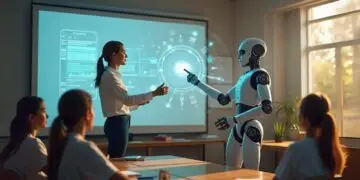













Transform your lesson planning with AI-Powered Lesson Planning using ChatGPT. Learn step-by-step strategies, time-saving templates, and proven techniques from experienced teachers. Includes real classroom examples and troubleshooting tips.

Look, I know what you’re thinking – “Great, another tech tool that’ll take forever to figure out.” But I promise this setup is easier than getting students to line up quietly after recess. Let’s break it down into manageable chunks.
First Things First: Getting Access
There are two ways to get started with ChatGPT, and honestly, your choice might depend on whether you just got paid or not (we’ve all been there):
The Free Route
Head over to chat.openai.com and create an account. It’s about as complicated as setting up a Netflix account – which means your tech-savvy students could probably do it in their sleep. The free version is perfectly fine for getting started, but there’s a catch: during busy times, you might get the dreaded “at capacity” message. Think of it like the copy machine right before progress reports are due.
The Paid Route ($20/month)
This is what I eventually switched to, and here’s why: Remember that time you were making copies at 11 PM because the machine was always busy during prep period? That’s kind of what the free version feels like sometimes. The paid version (ChatGPT Plus) gives you:
- No wait times (hallelujah!)
- Access to GPT-4 (the smarter version)
- Faster responses (because we teachers have enough things testing our patience)
Setting Up Your Planning Space
Here’s what’s worked for me after much trial and error:
The Physical Setup
- A decent-sized screen (trying to plan on your phone is like grading essays with a crayon – technically possible but why torture yourself?)
- A way to take notes (I keep a Google Doc open to save my favorite prompts)
- Your actual teaching materials nearby (curriculum guides, standards, etc.)
- Some form of caffeine (optional but recommended)
The Digital Organization
Here’s what I wish someone had told me on day one – organize your ChatGPT conversations by subject or unit. I learned this the hard way after spending 20 minutes scrolling through old chats trying to find that one perfect prompt I used for my Statistics and Probability unit.
Create new chats for:
- Different subjects
- Different units
- Different types of activities (bell ringers, assessments, etc.)
- Different student groups (if you teach multiple levels)
Essential Companion Tools
You don’t need much, but these have saved my sanity:
- Google Docs or Word (for saving and editing ChatGPT’s responses)
- Your curriculum standards (because alignment still matters)
- A bookmark folder for your favorite ChatGPT chats (trust me on this one)
- A backup plan (because technology loves to fail right when you need it most)
Before You Start Planning
Take 10 minutes to gather:
- Your learning objectives (the real ones, not just the ones written in the curriculum guide)
- Any specific student needs or modifications you need to address
- Available resources (because ChatGPT suggesting a computer lab activity when you have two working computers is not helpful)
- Time constraints (both for the lesson and your planning)
Added Pro Tips
Keep a running document of your successful prompts. I started doing this after accidentally creating the best lesson ever for my struggling readers and then completely forgetting how I asked ChatGPT to do it. Now I have a “Greatest Hits” document with all my winning prompts.
The “Don’t Make My Mistakes” Checklist
- Don’t start from scratch every time (save those good prompts!)
- Don’t forget to mention grade level and student abilities
- Don’t assume ChatGPT knows your resource limitations
- Don’t try to plan an entire unit in one go (it gets messy)
- Don’t forget to save the good stuff (seriously, save those prompts)
Remember, setting up is like the first week of school – it might feel a bit chaotic, but once you get your systems in place, things run much smoother. And just like you tell your students, it’s okay to make mistakes. That’s how we learn (though maybe don’t tell them about that time I asked ChatGPT to create a lesson plan without specifying the grade level and got back something that mixed kindergarten counting with calculus).
Key Takeaways:
– Organize your ChatGPT conversations by subject and unit
– Keep a document of successful prompts
– Have backup plans ready for technology failures
– Consider the free version first, upgrade if needed
– Gather all necessary materials before starting your planning session












Comments 5